How to Structure a Changelog Page for Non-Technical Users?
Most changelog advice is written by developers, for developers. It assumes the reader already knows what a webhook is, why a version number matters, or what "refactored" means. That works fine for an API product. It falls apart for the much larger group of SaaS and no-code tools whose actual users are marketers, shop owners, freelancers, and small teams who just want to know what changed and whether it affects them.
According to Salesforce, 61% of customers prefer to use self-service for simple issues, and a changelog is one of the simplest self-service tools a product has — if it's written so a non-technical reader can actually use it without filing a support ticket to translate it. This guide walks through how to structure a changelog page for non-technical users, the keywords and categories that make it scannable, and how a tool like SubPage makes that structure easy to maintain without writing a single line of code.
Why most changelogs fail non-technical readers
A changelog written for engineers optimizes for precision. A changelog written for customers needs to optimize for clarity instead, and the two goals pull in different directions. Entries like "refactored auth middleware" or "resolved race condition in queue processor" are accurate, but they tell a non-technical reader nothing about whether they need to do anything or whether the thing they were stuck on yesterday is now fixed.
This matters more for SMBs and no-code teams than it does for developer tools, because the audience reading the changelog is the same audience using the product day to day — not a separate technical team. If they can't understand an entry, they either ignore the changelog entirely or open a support ticket asking what it means, which defeats the purpose of publishing one in the first place.
The fix isn't to remove detail. It's to restructure the page so plain language, visual hierarchy, and impact-based grouping do the work that technical jargon used to do.
Start with plain language, not technical accuracy
The single highest-leverage change you can make to a changelog is rewriting each entry from the customer's point of view instead of the engineering team's. A simple test: if someone on your support team couldn't read the entry aloud to a confused customer without translating it first, rewrite it.
Here's what that rewrite looks like in practice:
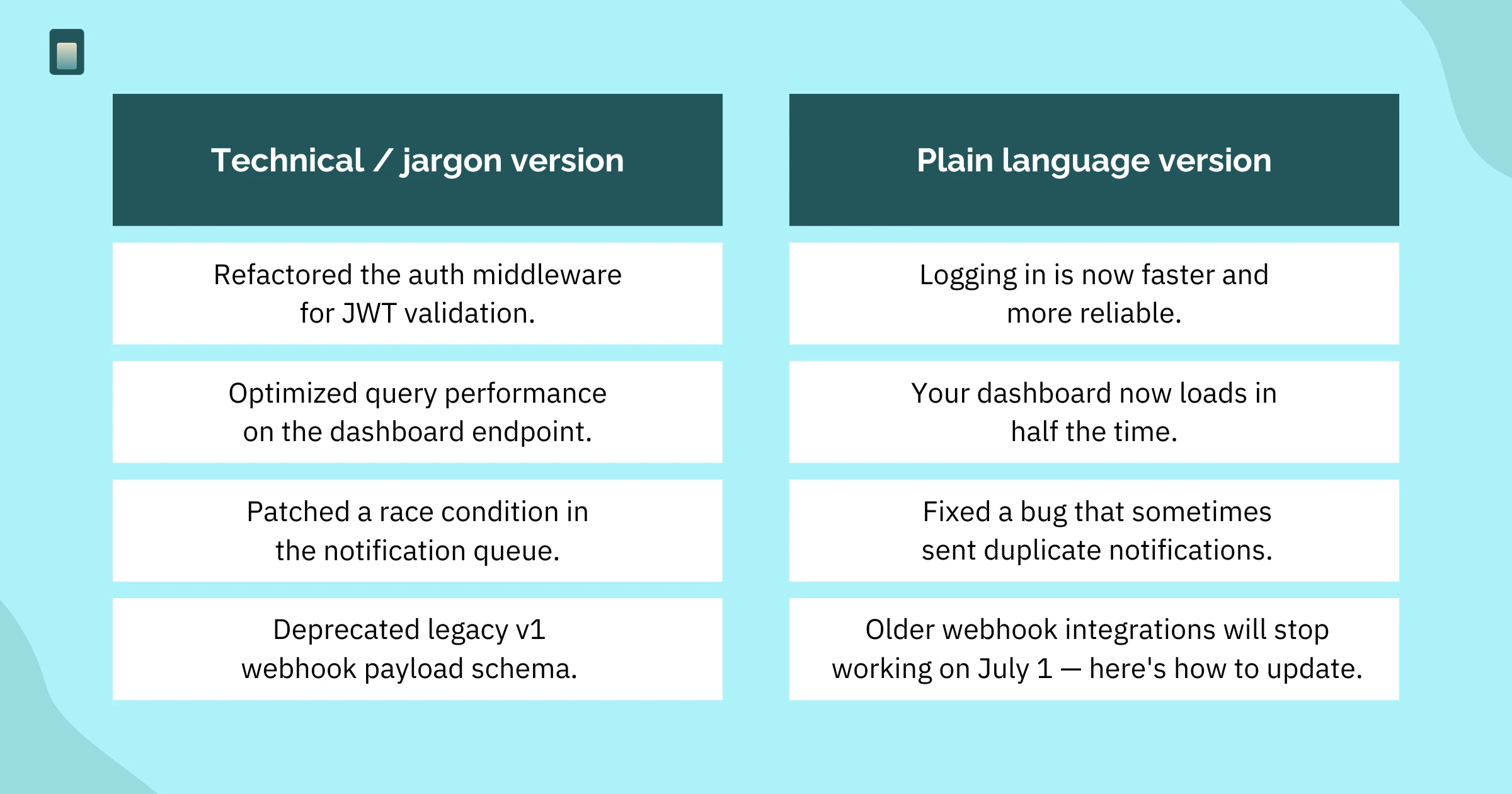
Notice the plain-language versions all do the same three things: they name what changed, they describe it in terms of the customer's experience, and they skip implementation details the reader doesn't need. That's the entire formula.
Categorize by impact, not by engineering type
Developer-facing changelogs are often organized around how the team works internally: commits, pull requests, or technical change types like "Changed," "Deprecated," or "Security." Those labels assume the reader already knows why a deprecation matters. Non-technical readers need categories built around what the change means for them, not how the team produced it.
A category system that works for non-technical audiences usually looks like this:
- New: — something the customer can now do that they couldn't before.
- Improved: — something that already worked, but now works better, faster, or looks different.
- Fixed: — something that was broken and now isn't.
- Heads up: — something that requires action, like an integration update or a setting that's going away.
That last category, often skipped, is the one that prevents the most support tickets. If a change requires the customer to do something — reconnect an integration, update a setting, expect a price change — it deserves its own clearly flagged category instead of being buried inside a generic "Changed" list. If you're unsure whether a given update belongs in a quick changelog entry or a fuller customer announcement, our guide on changelog vs. release notes covers exactly where that line sits.
Build a visual hierarchy that lets readers skim
Non-technical users rarely read a changelog top to bottom. They land on it looking for one thing: has the bug I reported been fixed, or has the feature I requested been shipped? A page structured for skimming gets them to the answer in seconds.
A few structural choices make the biggest difference:
- Lead with a short, benefit-focused headline for every entry — not a version number. "Export to CSV" beats "v2.4.1."
- Use color-coded tags for each category so a reader can scan the page visually before reading a single sentence.
- Keep each entry to two or three sentences. Link out to a help article for anything that needs more depth.
- Add a screenshot or short GIF for visual changes — a redesigned screen is far easier to show than describe.
- Make the page searchable, so a customer can type "export" or "billing" instead of scrolling through months of history.
Together, these choices turn a changelog from a wall of text into something closer to a product's highlight reel — informative enough to be useful, but light enough that a non-technical reader will actually finish it.
A simple template for non-technical changelog entries
Once the structure is in place, each entry can follow the same repeatable template. Consistency is what makes a changelog page feel trustworthy rather than improvised:
- Title: a plain-language headline focused on the benefit, not the build.
- Category: New, Improved, Fixed, or Heads Up, clearly tagged or color-coded.
- Date: the day it shipped, in a format that doesn't require guessing month versus day.
- Description: two or three sentences explaining what changed and why the customer should care.
- Visual or link: optional — a screenshot, short clip, or link to a help article for anyone who wants more detail.
This template scales whether you're publishing one update a month or several a week, and it gives anyone on the team — support, product, or marketing — a clear bar to write to without needing an engineering review first.
How SubPage Helps You Structure a Changelog Non-Technical Users Can Actually Use
Most of what makes a changelog readable — plain language, impact categories, visual hierarchy — is easy to define but tedious to maintain without the right structure behind it. SubPage handles the structural decisions, so your team doesn't have to rebuild them every time.
- Customizable log types let you tag every entry as a fix, feature, or major update with color-coded labels — so the impact-based categories this guide recommends (New, Improved, Fixed, Heads Up) are built into the page from the start, not something you format manually each time.
- Built-in search and filters mean a customer can type "billing" or "export" and land on the right entry in seconds — instead of scrolling through months of history to find the one update they actually care about.
- Visual updates theme switches a plain text list into an image-rich layout with one click — ideal for non-technical audiences who will understand a screenshot of a redesigned screen faster than three sentences describing it.
Common mistakes to avoid
- Bundling unrelated changes into one entry — releasing five fixes in one paragraph buries the one update a customer actually cares about.
- Leading with version numbers — version numbers and build references mean nothing to most customers; lead with the benefit instead.
- Hiding changes that require action — "Heads up" or breaking-change entries need to be impossible to miss, not buried under routine fixes.
- Publishing inconsistently — sporadic updates make customers stop checking the page altogether, even if you are shipping consistently behind the scenes.
Each of these mistakes is easy to avoid once the page has a defined structure and a repeatable entry template — the goal isn't to write more, it's to write the same way every time.
Conclusion
A changelog page for non-technical users succeeds when a customer can scan it, understand what changed, and know whether it affects them — all without needing a developer to translate it. Plain language, impact-based categories, and a consistent visual structure do that work. The harder part is maintaining that structure, release after release, without it becoming a burden on a small team.
That's exactly the gap SubPage is built to close for SMBs and no-code teams. Start building your changelog page on SubPage today and turn your next product update into something your customers actually read.
