How to notify app users about a changelog update?
Most teams treat shipping a feature and announcing a feature as the same task. They are not. According to Appcues, users who never discover a feature represent a discovery failure — not a value problem — and the fix is in-app messaging, not product redesign. You can ship the best update of the quarter, but if it lives quietly on a changelog page nobody visits, it might as well not have shipped at all.
This is the gap between having a changelog and having a notification system. A changelog is the record. A notification widget is what pulls a user's eyes toward that record at the right moment. This guide walks through why that distinction matters, the four ways SubPage lets you surface a changelog update directly inside your product, and how to pick the right one for your audience.
What is a changelog update notification?
A changelog update notification is any in-product element that tells a user a new entry has been added to your changelog — without requiring them to go looking for it themselves. Instead of users stumbling onto a /changelog page by accident, the notification comes to them: a banner at the top of the screen, a badge on a menu item, a slide-in card, or a pop-up that appears on login.
The changelog itself answers "what changed." The notification answers "how does the user find out." Teams that only solve the first problem usually see low read rates on updates, repeat support tickets asking about features that already shipped, and low adoption of paid-tier features that were announced once and never surfaced again.
Why product announcements need more than a static page
A static changelog page is necessary, but it is a passive channel — it only works for users who already have the habit of checking it, and most users do not. Active users are busy inside your product, not browsing your marketing site. If the only place an announcement lives is a page three clicks away from the app, it will reach a small fraction of your user base.
Think about how most people actually behave inside a product they use regularly. They log in with a task in mind, complete it, and leave. They are not browsing for news. Unless something visually interrupts that flow, an update can sit live on your changelog page for weeks without a meaningful share of your user base ever opening it. The page does its job as a record, but a record is not the same as a notification.
This is why most mature SaaS products pair a changelog page with at least one in-app widget. The page serves as the permanent archive and the SEO-friendly public record — useful for search visibility, support teams linking to specific updates, and power users who like to scroll the full history. The widget serves as the delivery mechanism that interrupts a session just long enough to say "something changed, here's what." Used together, the two channels cover both the user who actively searches for changes and the much larger group who would never have looked.
Four ways to notify users with a changelog widget
SubPage's changelog tool includes four built-in widgets, each suited to a different moment in the user's session and a different level of urgency. You can use one or combine several, depending on how disruptive the update is.
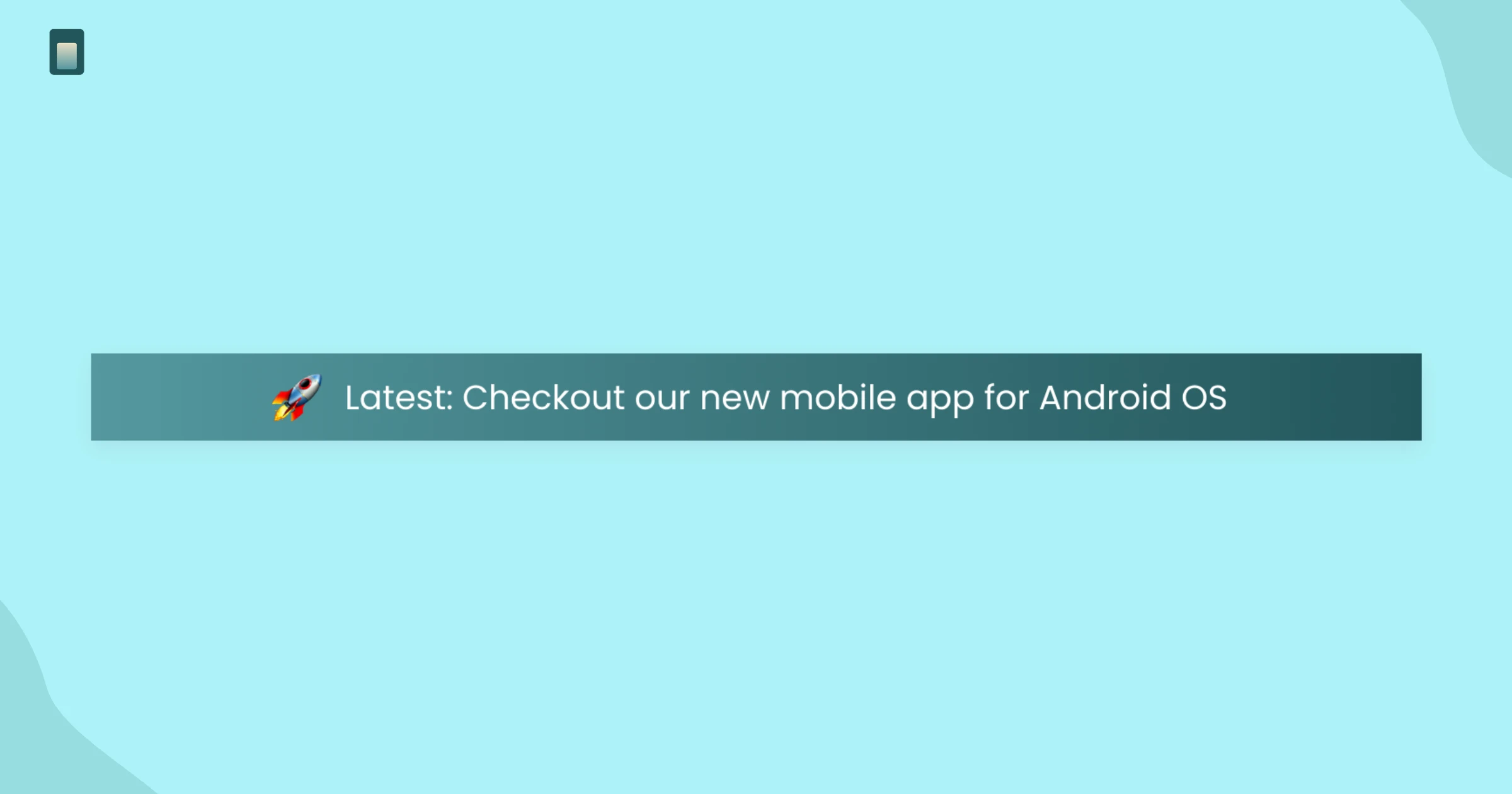
1. What's new announcement bar
This is a slim bar pinned to the top of your website or app, similar to the example shown in the SubPage editor: "Latest: Checkout our new mobile app for Android OS." It is the lowest-friction option because it does not block any part of the screen — users can read it or ignore it and keep working.
- Best for: major releases you want visible to every visitor, not just logged-in users
- Works well on: marketing homepage, app dashboard header
2. Changelog sidebar widget
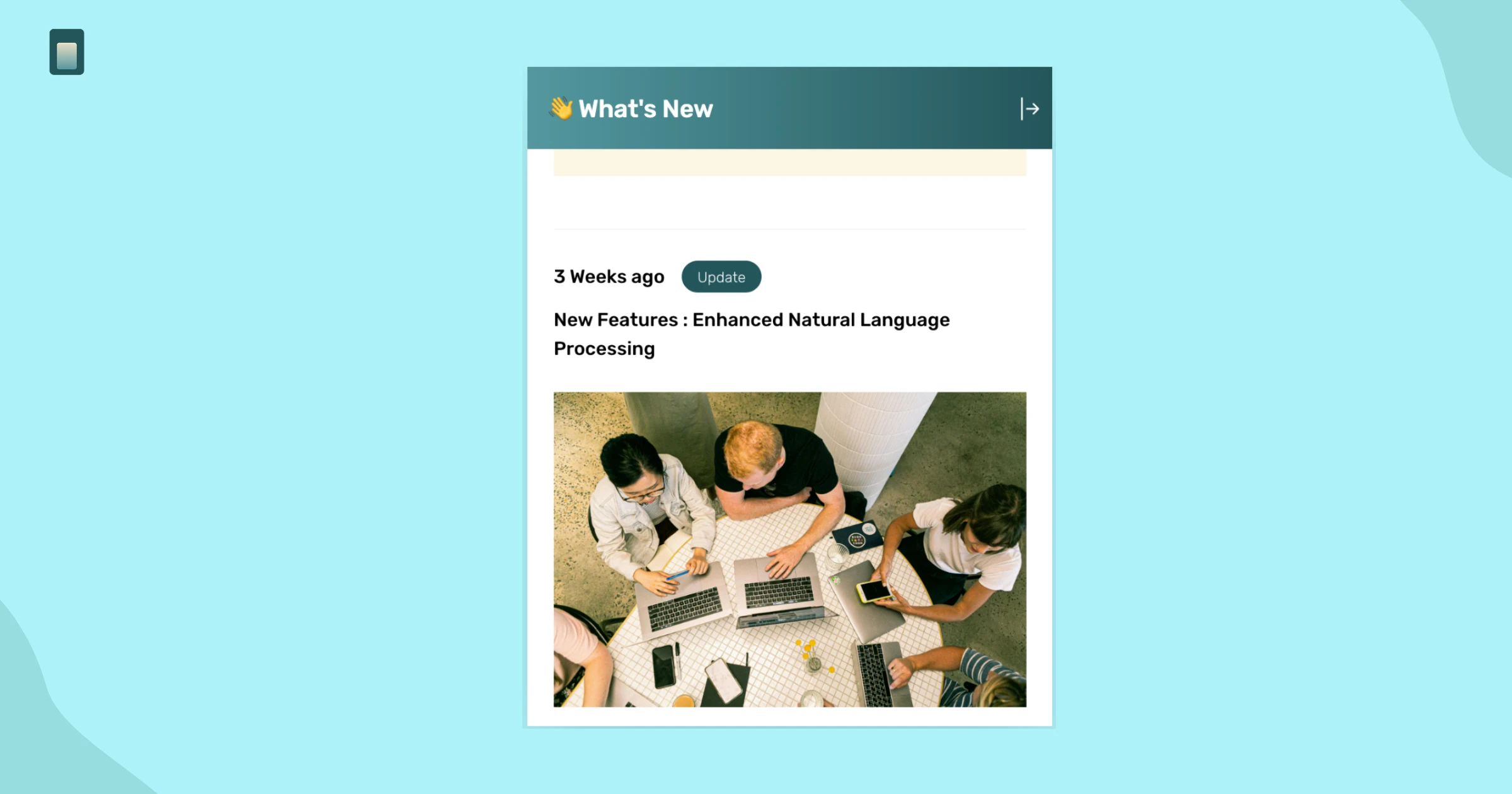
The sidebar widget opens a slick panel listing your latest changes, complete with timestamps, update type tags (like "Update"), and imagery. A user can click into it from anywhere in the app without leaving their current page, then close it and resume what they were doing.
- Best for: users who want more than a one-line headline but shouldn't have to navigate away
- Works well on: in-app navigation bars, help menus
3. Showcase latest updates (slideshow)
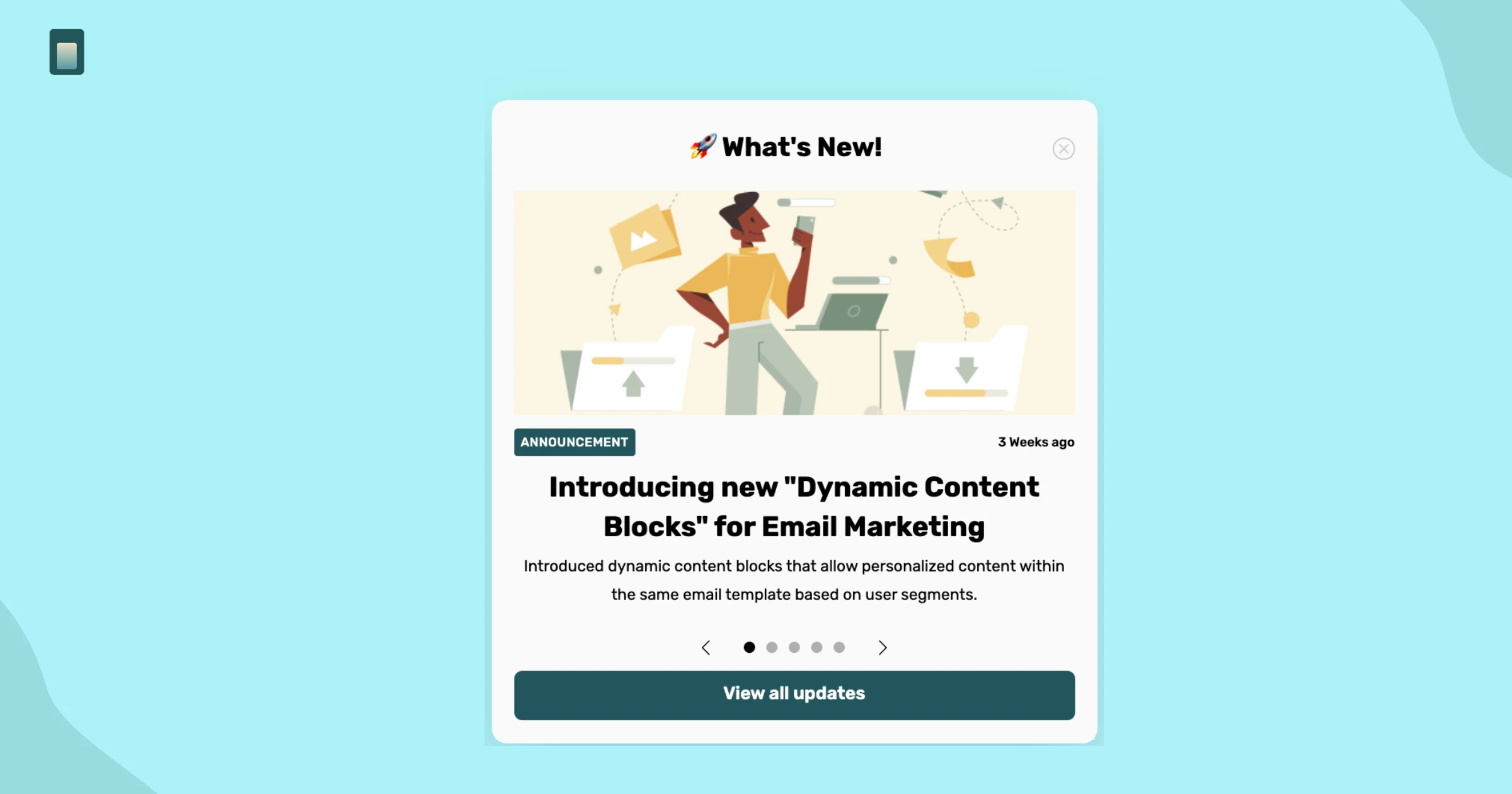
This widget displays your last several updates as a rotating slideshow, each with its own headline, short description, and a "View all updates" link. Because it cycles through entries automatically, it is well-suited to surfacing more than one change without needing more than one notification.
- Best for: teams that ship frequently and want to batch multiple updates into one visual unit
- Works well on: dashboards, accounts, or settings pages
4. Popup to display latest update
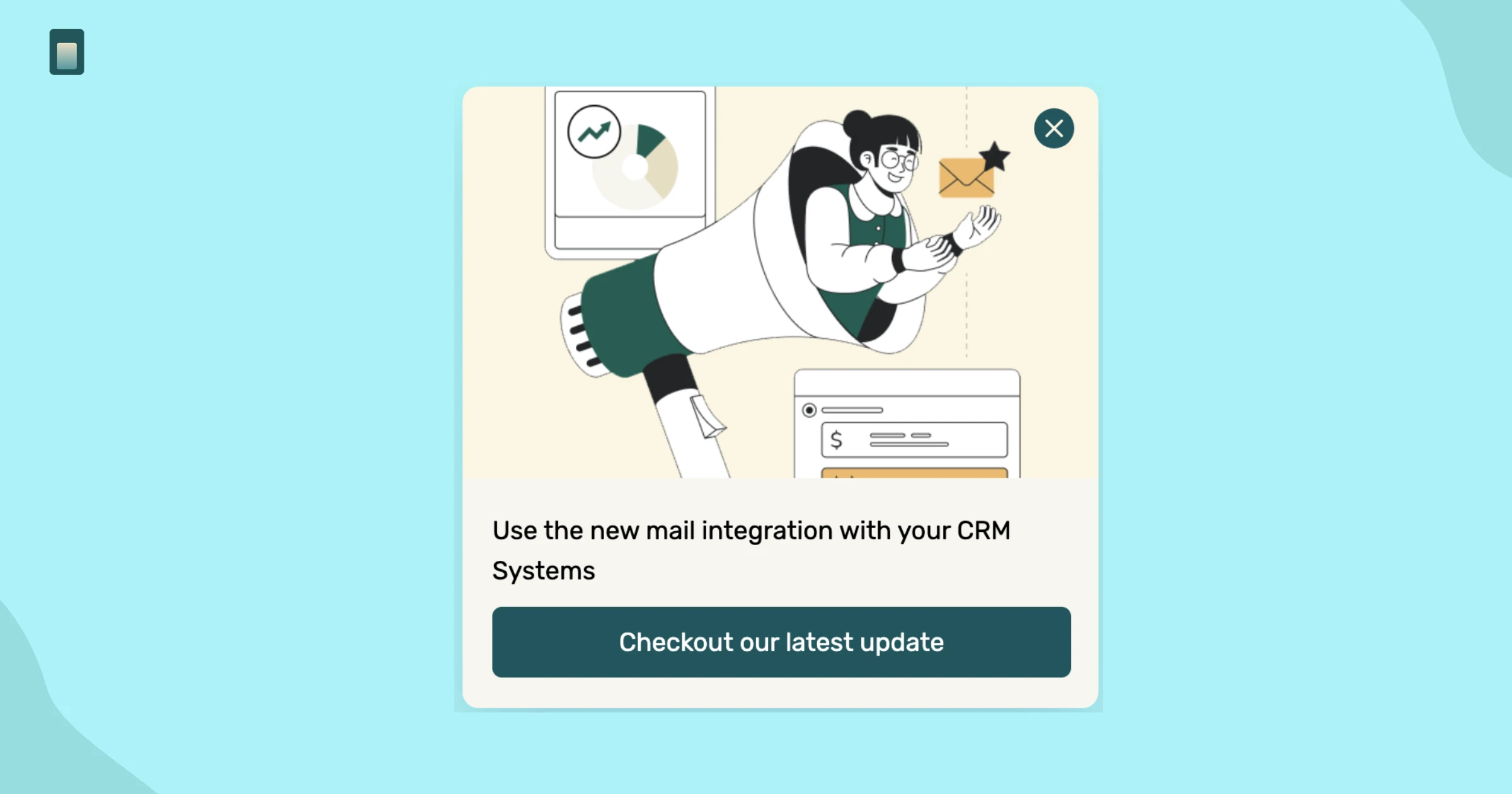
The pop-up is the most attention-grabbing of the four — it appears as a prompt over the interface, pairs an illustration with a short headline, and includes a direct call-to-action button, such as "Check out our latest update." Because it interrupts the screen, it is best reserved for updates you don't want to miss.
- Best for: high-impact releases, breaking changes, or updates tied to a deadline
- Works well on: first login after a release, key in-app moments
How to choose the right widget for your update
Not every update deserves the same level of interruption. A minor bug fix and a pricing change should not compete for the same amount of user attention. A simple way to decide is to match the widget to the size of the change:
- Minor fix or small tweak — use the sidebar widget so interested users can find it without it being pushed in front of everyone.
- Regular feature release — use the showcase slideshow on the dashboard so it's visible during normal use.
- Site-wide or marketing-facing news — use the announcement bar across your homepage and app.
- Major release or urgent change — use the pop-up so it cannot be missed on next login.
Beyond widgets: keeping the changelog itself in sync
Widgets solve distribution, but they are only as useful as the changelog feeding them. A common failure point is forgetting to update the changelog when a release goes out — the widget then has nothing new to show. SubPage addresses this with auto fetch, a feature that pulls in your latest updates automatically from connected sources like GitHub releases or RSS-based release notes, instead of requiring someone to manually retype an entry every time you ship.
This matters specifically for notification widgets because they depend on freshness. A sidebar or pop-up pointing to outdated information damages trust faster than having no widget at all. With auto fetch, the changelog stays current, and every widget pulling from it stays current too, without extra manual work from your team.
Best practices for changelog notifications
A widget will only build trust if it's used with some restraint. A few habits keep notifications useful instead of noisy:
- Don't notify for every change — reserve widgets for updates that affect how users work, not invisible backend fixes.
- Write the headline for the user's benefit, not the engineering ticket title ("Export to PDF in one click" beats "Added PDF export endpoint").
- Pair a bold widget like the popup with a softer one like the sidebar, so users who dismiss the popup can still revisit details later.
- Keep the changelog itself current — a stale changelog behind a fresh-looking widget creates more confusion than silence would.
- Review which widgets get clicked and which get dismissed, then adjust placement over time rather than assuming one setup works forever.
Conclusion
A changelog only creates value once users actually see it. Pairing your changelog with the right widget — announcement bar, sidebar, showcase, or pop-up — turns a passive record into an active notification system, and auto fetch keeps that system stocked without manual upkeep.
Ready to set up your own changelog and widgets? Sign up with SubPage and get your first update in front of users today.